-
Before you start
Check these two things first:
- The right Eventleaf plan. Credits are part of the Professional and Ultimate plans. On the other plans, you can try them on events with fewer than 20 attendees.
- Sessions on your agenda. Credits work per session. Add your sessions under Event Info > Agenda first.
-
Setting up credits, step by step
1. Open the session
Log in to Eventleaf and select your event. Go to Event Info > Agenda. Click the title of the session.
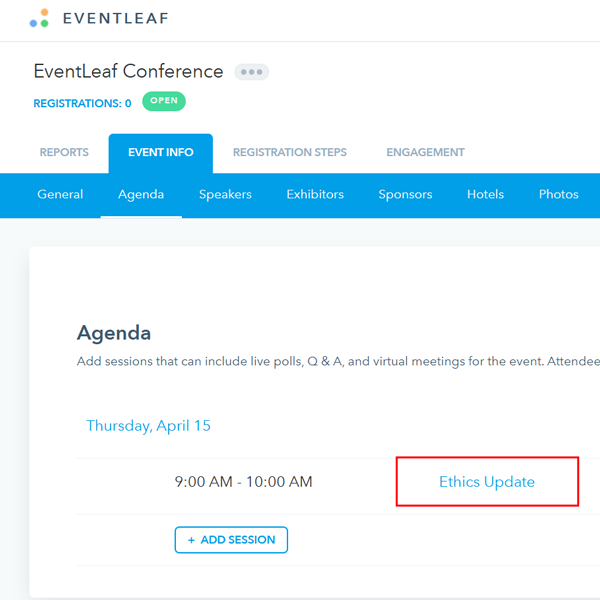
The Session Details panel should open.
2. Set the credits
Scroll down to the Credits section on the Session Details panel. Then do these five things:
- Select Award credits to attendee for attending the session.
- In Credits Awarded, enter the credits for the full session, for example 2.
- Under Award Credit On, select Check Out.
- In Percentage of time spent in session to get full credit, adjust the percentage as per your requirements.
- If you want to reward fractional credits to the attendees who don't stay for the
full session, select Award fractional credits based on the time spent at
the session.
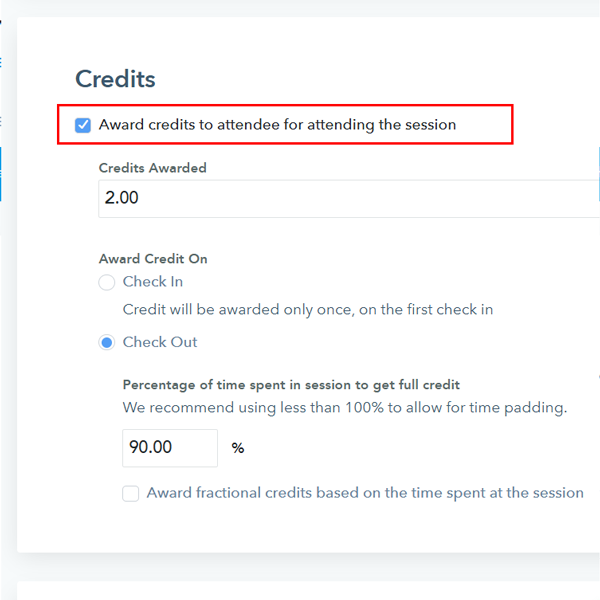
When you select Check Out, Eventleaf awards credits when the attendee checks out. The amount depends on how long they stayed:
- 90% of the session or more: full credits.
- Less than 90%, with fractional credits on: part of the credits. For example, half the session earns half the credits.
- Less than 90%, with fractional credits off: no credits.
For example, a 60-minute session is worth 2 credits. An attendee who stays 54 minutes or more gets 2 credits. An attendee who stays 30 minutes gets 1 credit.
If you select Check In instead, the attendee gets the full credits on their first check-in. Eventleaf doesn't check how long they stay.
3. Check the credits in the attendance log
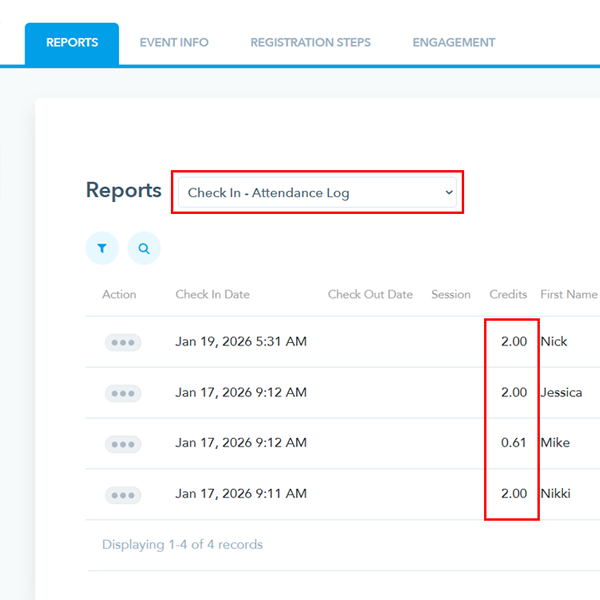
After the session, click the Reports tab. In the Reports dropdown, select Check In - Attendance Log.
Each check-in has its own row, with its check-in time, check-out time, and Credits.
-
Troubleshooting
Problem Fix An attendee shows 0.00 credits. They haven't checked out yet. Or they stayed less than the percentage you set, and fractional credits are off. I changed the settings, but the credits didn't change. Click RECALCULATE CREDITS above the attendance log. On the popup you see, click RECALCULATE CREDITS again.