-
Before you start
Have these three things ready:
- The email address you registered with. The portal finds your events by this address.
- Your password or access to your email inbox. If you have an Eventleaf password, you can sign in with it. If not, Eventleaf sends a security code to your registration email.
- The session codes. The organizer shows a check-in code at the start of the session and a check-out code at the end.
-
Checking in through the Attendee Portal, step by step
1. Open the Attendee Portal
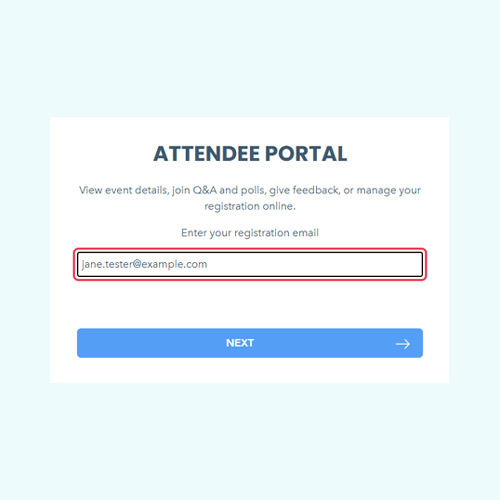
Open the Attendee Portal link in your registration confirmation email, or go to eventleaf.com/join. Type the email address you registered with, then click NEXT.
2. Sign in with your password or an email code
If you have an Eventleaf password, you have two options:
- Use your password: Type your password, then click NEXT.
- Use an email code: If you don't remember your password, you can click Send verification email instead.
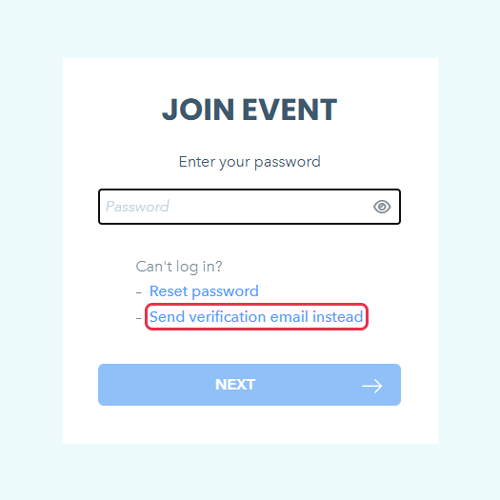
If you chose the email code, or you don't have a password, Eventleaf emails you a security code. Type the code, then click NEXT.
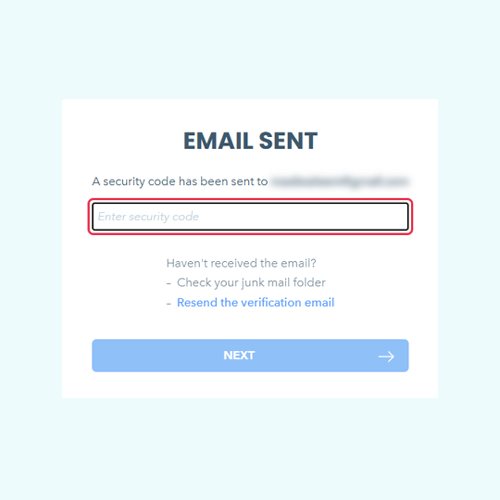
Tip: No email? Check your junk mail folder. Then click Resend the verification email.
3. Open the event agenda
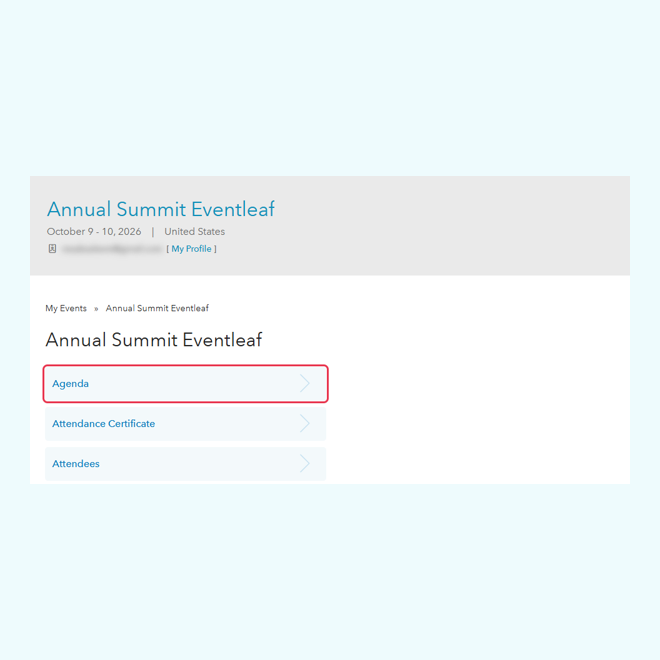
Under Select Event, click your event.
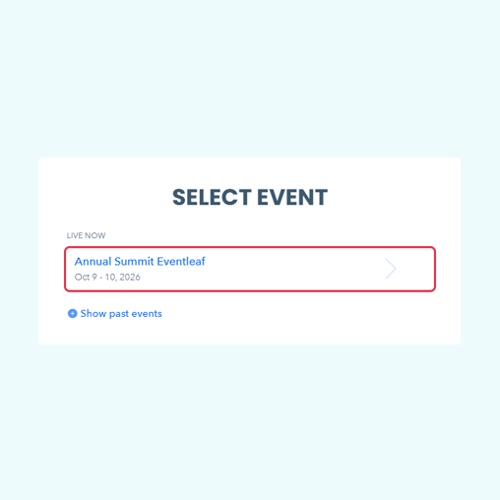
Click Agenda.
4. Open the session
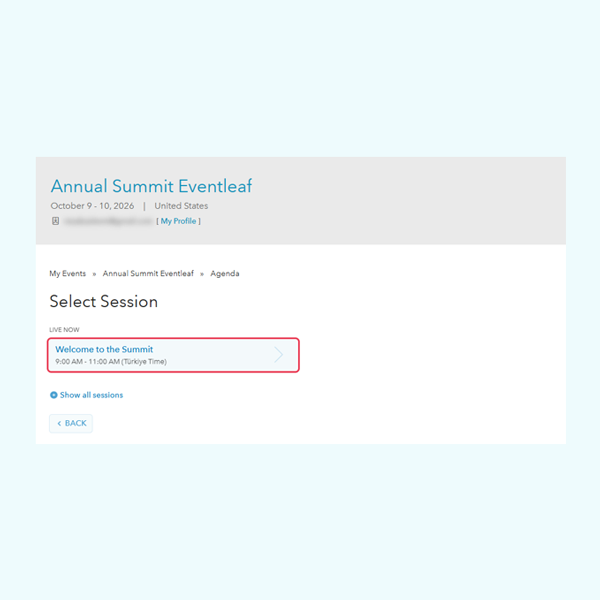
Sessions that are on now appear under LIVE NOW. Click your session. If you don't see it, click Show all sessions.
5. Check in
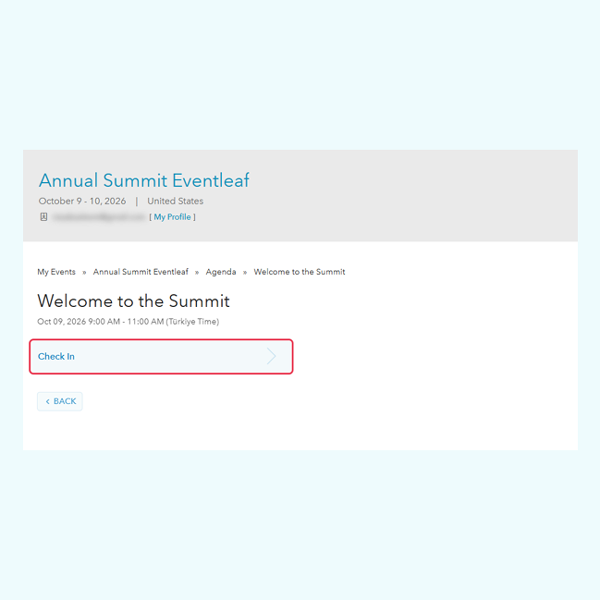
Click Check In.
Type the check-in code exactly as shown in the room, then click CHECK IN.
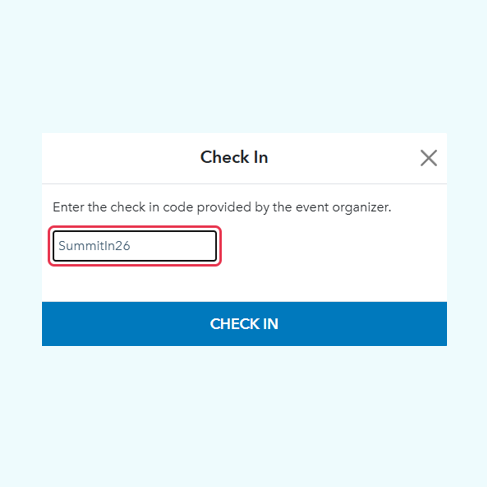
Important: Codes are case-sensitive. Copy the capital letters exactly.
The Check In button changes to Check Out. This tells you that the check-in worked.
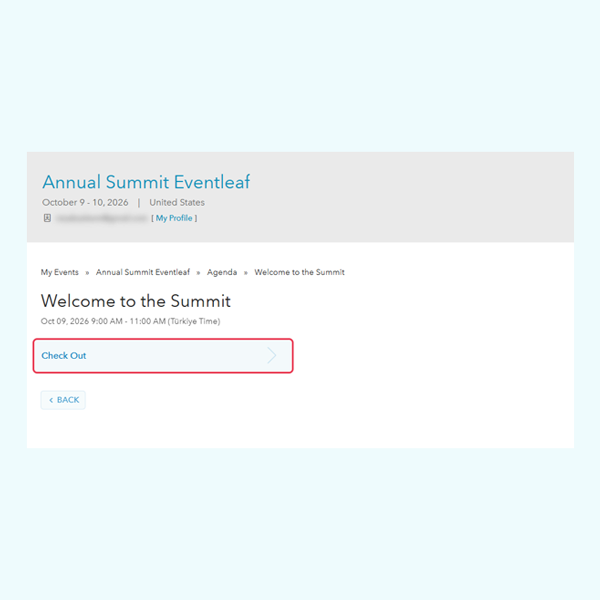
6. Check out
At the end of the session, open the session again and click Check Out. Type the check-out code, then click CHECK OUT. The button changes back to Check In.
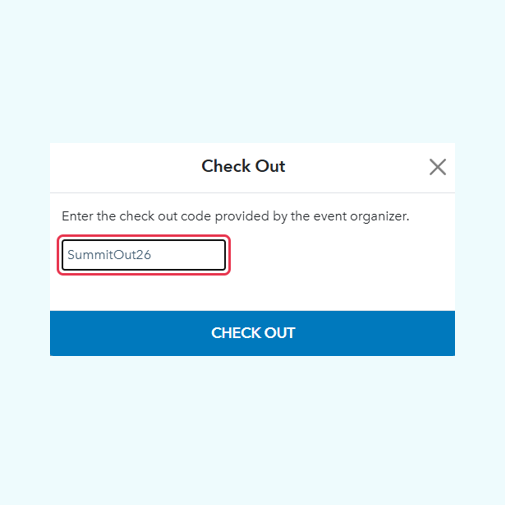
That's it. Your attendance for the session is recorded.
-
Pro tip: Always check out if your event awards credits
Some events award credits based on how long you stay. Eventleaf measures this from your check-in time to your check-out time. If you leave early, check out when you leave. If you forget, ask the organizer to fix your record.
-
Troubleshooting
Problem Fix I see "Invalid code." Check the capital letters. Make sure you use the check-in code to check in and the check-out code to check out. My event isn't under Select Event. Sign in with the same email address you used to register. If the organizer reviews registrations, yours may still be pending. Wait for your confirmation email. The agenda says "There are no active sessions at this time." Your session hasn't started yet. Click Show all sessions, then click your session. The session page has no Check In button. Self check-in isn't turned on for that session. Ask the organizer or event staff. The portal asks for a password I forgot. Click Send verification email instead. Eventleaf emails you a security code, so you don't need the password. The security code email didn't arrive. Check your junk mail folder. Then click Resend the verification email.